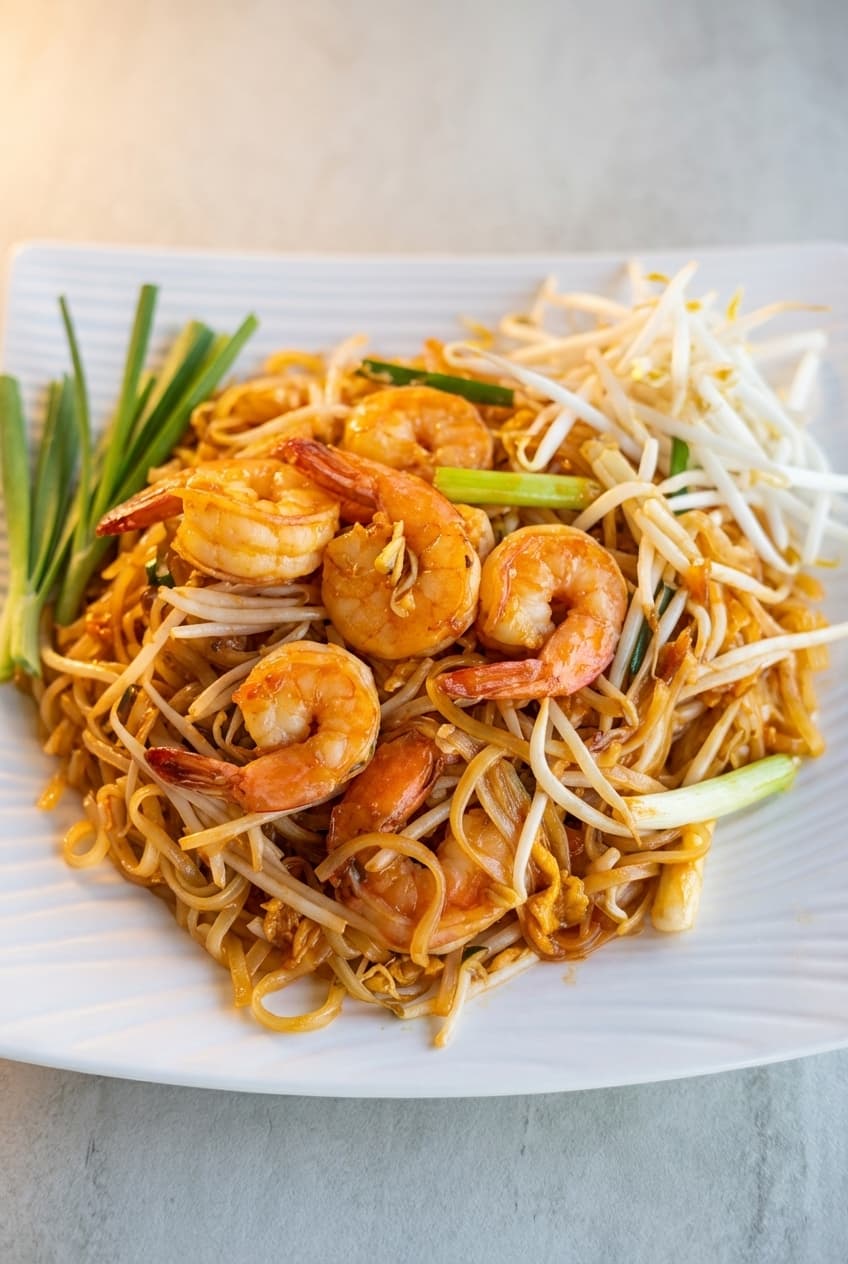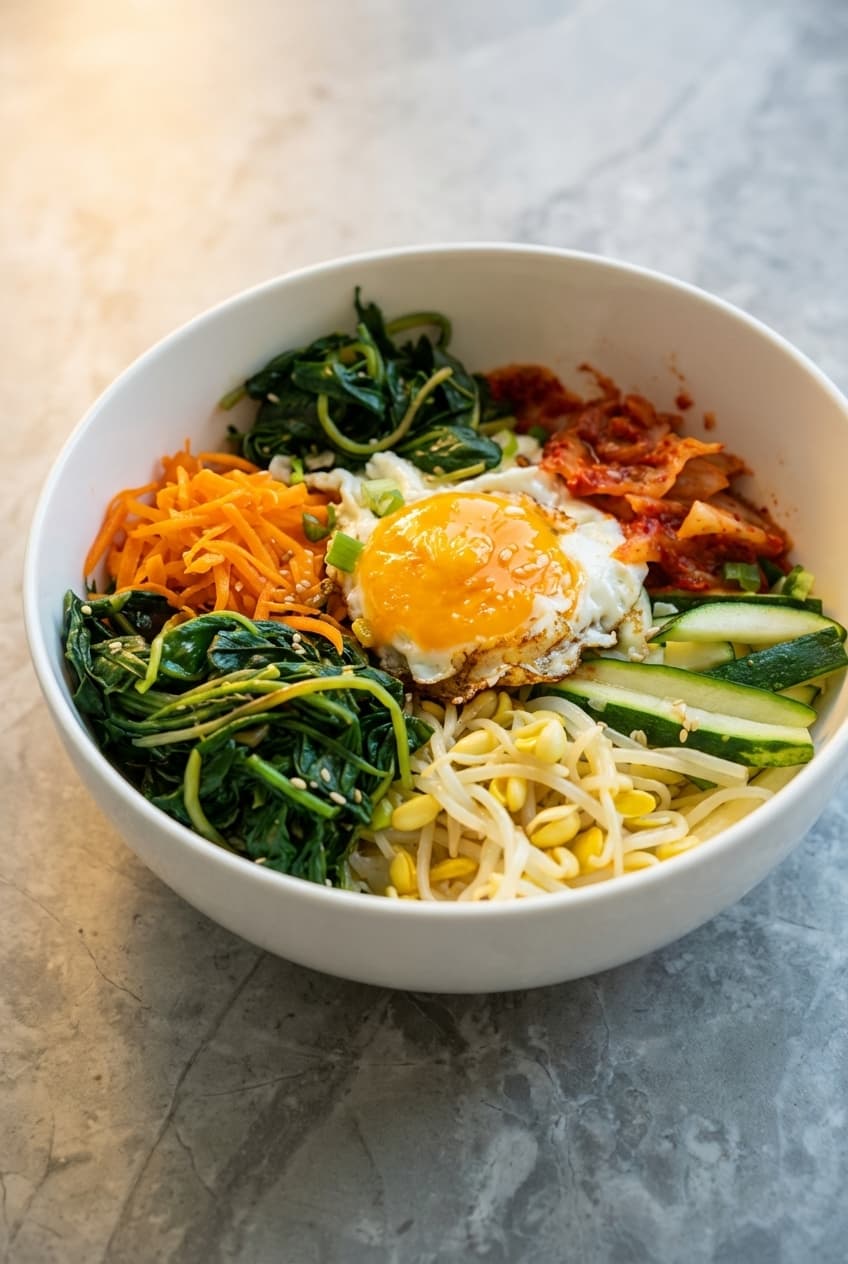
Your Google Business Profile is the most important digital asset your restaurant owns, and most restaurant owners are completely neglecting its photos. When someone searches “restaurants near me” or “best Italian food in [city], ” Google displays your GBP listing with photos front and center.
The numbers are striking: restaurants with 10+ quality photos on their GBP get 35% more clicks to their website and 42% more requests for driving directions compared to those without. Yet the average restaurant has fewer than 5 owner-uploaded photos on their profile. If you’re not sure whether your current photos are up to standard, try our free photo checker tool to get an instant quality score.
This guide covers exactly how to optimize your Google Business Profile photos to maximize visibility, clicks, and foot traffic.
Why Google Business Profile Photos Matter
Google Business Profile (formerly Google My Business) is often the first impression potential customers have of your restaurant. Before they visit your website, read your menu, or check your Instagram, they see your GBP listing in Google Maps and search results.
The Data
- 35% more website clicks: Restaurants with 10+ photos receive significantly more clicks to their website
- 42% more direction requests: More photos = more people physically navigating to your restaurant
- 2.7x more likely to be considered reputable: Listings with professional photos are perceived as more established and trustworthy
- Customer photos fill the gap: If you don’t upload quality photos, Google will display customer-uploaded photos instead, which you have zero control over and are often unflattering
How Google Uses Your Photos
Google doesn’t just display photos in your listing, it uses them algorithmically:
- Photos appear in Google Maps search results alongside your rating and distance
- Google auto-selects a cover photo for your listing based on quality and engagement
- Photo quantity and quality are ranking factors in local search (Google has confirmed this)
- Photos appear in Google Image search results, driving additional discovery
Google Business Profile Photo Categories
Google organizes photos into specific categories. For restaurants, you should have photos in all of these:
1. Cover Photo
This is the primary image that represents your restaurant across Google. It appears in search results, Maps, and your listing header.
- What to use: Your single best food photo OR your restaurant exterior at its most inviting (warm lighting, outdoor seating)
- Specs: 1080 × 608 px minimum (16:9 ratio), JPG or PNG
- Tip: Choose a photo that immediately communicates what kind of restaurant you are
2. Logo
Your restaurant’s logo, used in the small circular icon.
- What to use: Clean, simple version of your logo on a solid background
- Specs: 720 × 720 px minimum (1:1 square), JPG or PNG
- Tip: Keep it simple, text-heavy logos become unreadable at small sizes
3. Food & Drink Photos (Most Important)
These are the photos that sell your food. This category should have the most photos by far.
- What to upload: Your top 15–25 menu items, each photographed individually
- Specs: 720 × 720 px minimum, JPG or PNG, 10 MB max
- Tip: Photograph your best sellers, signature dishes, and most photogenic items first. For shooting techniques, see our food photography tips guide.
4. Interior Photos
Help customers visualize the dining experience before they arrive.
- What to upload: 3–5 interior shots showing seating areas, bar, private dining, ambiance
- Tip: Shoot during service (with customers, if they consent) to show energy and atmosphere. Empty restaurants look less inviting.
5. Exterior Photos
Help customers find you and know what to look for when they arrive.
- What to upload: 2–3 exterior shots: daytime, nighttime (with signage lit), and street-level view showing the entrance
- Tip: Include nearby landmarks or cross streets so customers can identify the location easily
6. Team Photos
Humanize your restaurant and build connection.
- What to upload: 2–4 photos of your chef, front-of-house staff, or owner
- Tip: Candid, in-action photos (chef cooking, bartender mixing) work better than posed headshots
Photo Specs and Technical Requirements
Google is specific about what it accepts. Follow these specs to avoid rejected uploads:
| Requirement | Specification |
|---|---|
| Minimum resolution | 720 × 720 px |
| Maximum resolution | 10,000 × 10,000 px |
| File format | JPG or PNG |
| Maximum file size | 10 MB (5 MB recommended for faster load) |
| Aspect ratio | No strict requirement, but 4:3 and 16:9 display best |
| Quality | Well-lit, in-focus, no heavy filters or text overlays |
| Content rules | No logos, no watermarks, no collages, no screenshots, no stock photos |
Important: What Google Rejects
- Photos with text overlays, watermarks, or logos stamped on them
- Collages or multi-image composites
- Stock photos or photos not taken at your location
- Blurry, dark, or significantly rotated images
- Screenshots of other content
How Many Photos Should You Upload?
More is better, but quality matters more than quantity. Here are the benchmarks:
- Minimum: 10 photos (cover, logo, 5+ food, 2 interior, 2 exterior)
- Good: 25 photos (comprehensive food coverage + interior + exterior + team)
- Excellent: 50+ photos (full menu coverage, seasonal updates, event photos)
- Google’s sweet spot: Businesses with 25+ photos get the most engagement per Google’s own data
Don’t upload 50 mediocre photos just to hit a number. 25 excellent photos will outperform 50 average ones. Quality signals matter to both the algorithm and to customers.
How Often to Update GBP Photos
Google rewards freshness. Listings that receive new photos regularly rank higher than stale listings with the same photos from two years ago.
Recommended Schedule
- Weekly: Add 1–2 new food photos (new dishes, daily specials)
- Monthly: Add seasonal or event photos
- Quarterly: Review and replace any outdated or underperforming photos
- Annually: Full photo refresh (new interior shots if you’ve renovated, updated team photos)
Set a recurring reminder to upload new photos every week. It takes 5 minutes and has a measurable impact on your local search ranking.
How to Add Photos to Your Google Business Profile
- Go to business.google.com and sign in with your Google account
- Select your restaurant from the dashboard
- Click “Photos” in the left menu (or “Add photos” from the overview)
- Click the blue “+” button to upload
- Select the appropriate category (Cover, Logo, Food & drink, Interior, Exterior, Team)
- Upload your photos (you can upload multiple at once)
- Photos typically appear within 24–48 hours after Google’s review
Pro tip: You can also upload photos directly from the Google Maps app on your phone. Search for your restaurant, tap “Add a photo, ” and upload.
Common GBP Photo Mistakes
- Not uploading any owner photos: If you don’t upload your own photos, Google fills your listing with customer-uploaded photos, which are often poorly lit, unflattering, or show half-eaten food
- Using the wrong cover photo: Your cover photo should be your best food shot, not a photo of your parking lot or a blurry group photo
- Uploading collages or graphics: Google will reject these. One photo per upload, no text overlays.
- Neglecting updates: Photos from 2022 signal a restaurant that may not be thriving. Keep your photos current.
- Ignoring customer photos: You can’t delete customer photos, but you CAN bury unflattering ones by uploading more (and better) owner photos. Google tends to prioritize owner-uploaded content.
- Wrong dimensions: Photos under 720 × 720 px get rejected or display blurry. Always upload at the recommended resolution or higher.
CraveMode: GBP-Ready Photo Formats
Every photo enhanced by CraveMode is automatically formatted for Google Business Profile compatibility. When you upload your raw food photos, we deliver back:
- GBP-optimized resolution: 1080 × 1080 px minimum, well above Google’s 720px requirement
- Clean, no-watermark output: Google rejects photos with text overlays or watermarks, our outputs are always clean
- Professional lighting and color: Professionally corrected exposure and color balance that meets Google’s quality standards
- Multiple format exports: Get your photos in 1:1 (GBP food photos), 16:9 (GBP cover photo), and 9:16 (social media) simultaneously
- Consistent style: All photos match your brand’s visual identity, so your GBP listing looks cohesive and professional
Your Google Business Profile is working for you 24 hours a day, 7 days a week. Make sure it’s showing your restaurant at its best. Upload professional, CraveMode-enhanced photos and watch your clicks, direction requests, and foot traffic increase. See our before-and-after showcase to see the difference enhancement makes, or view our plans to get started.