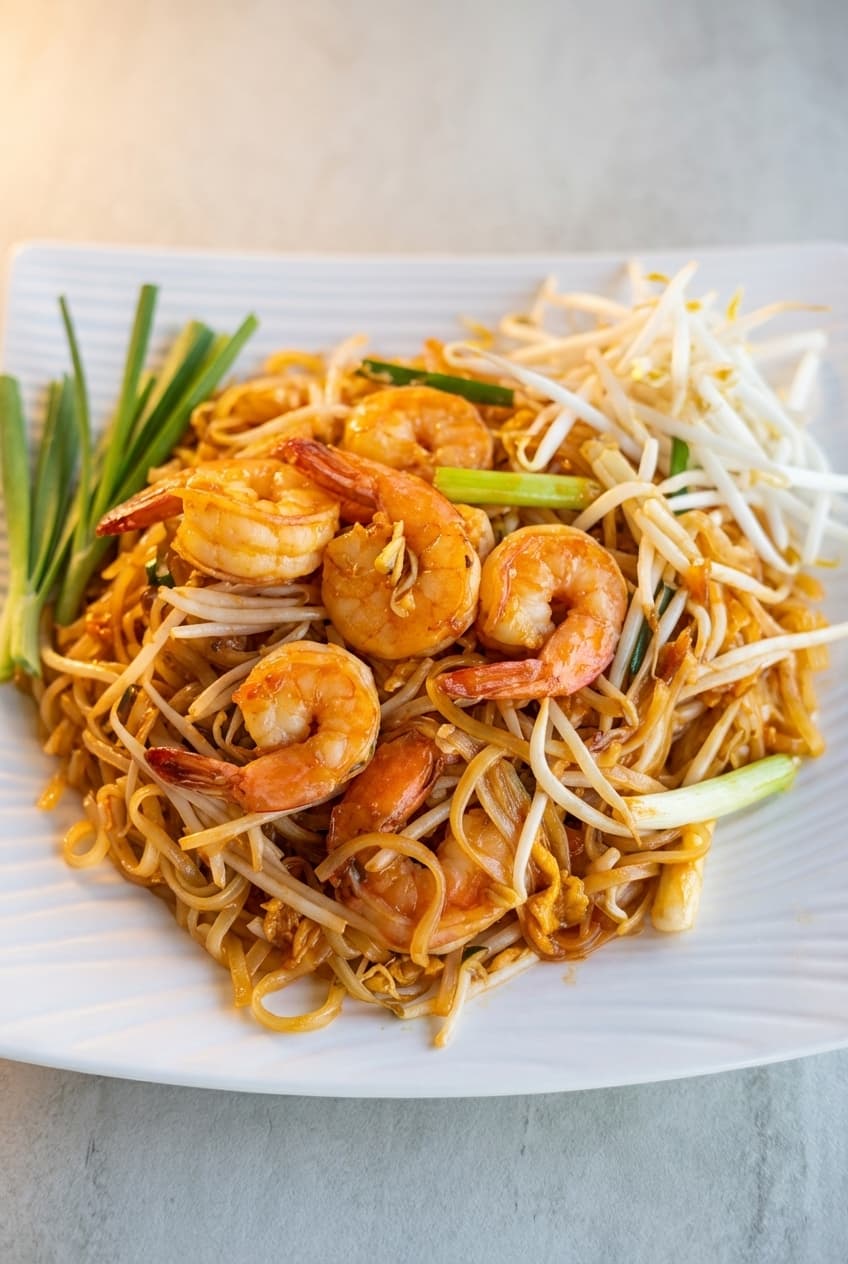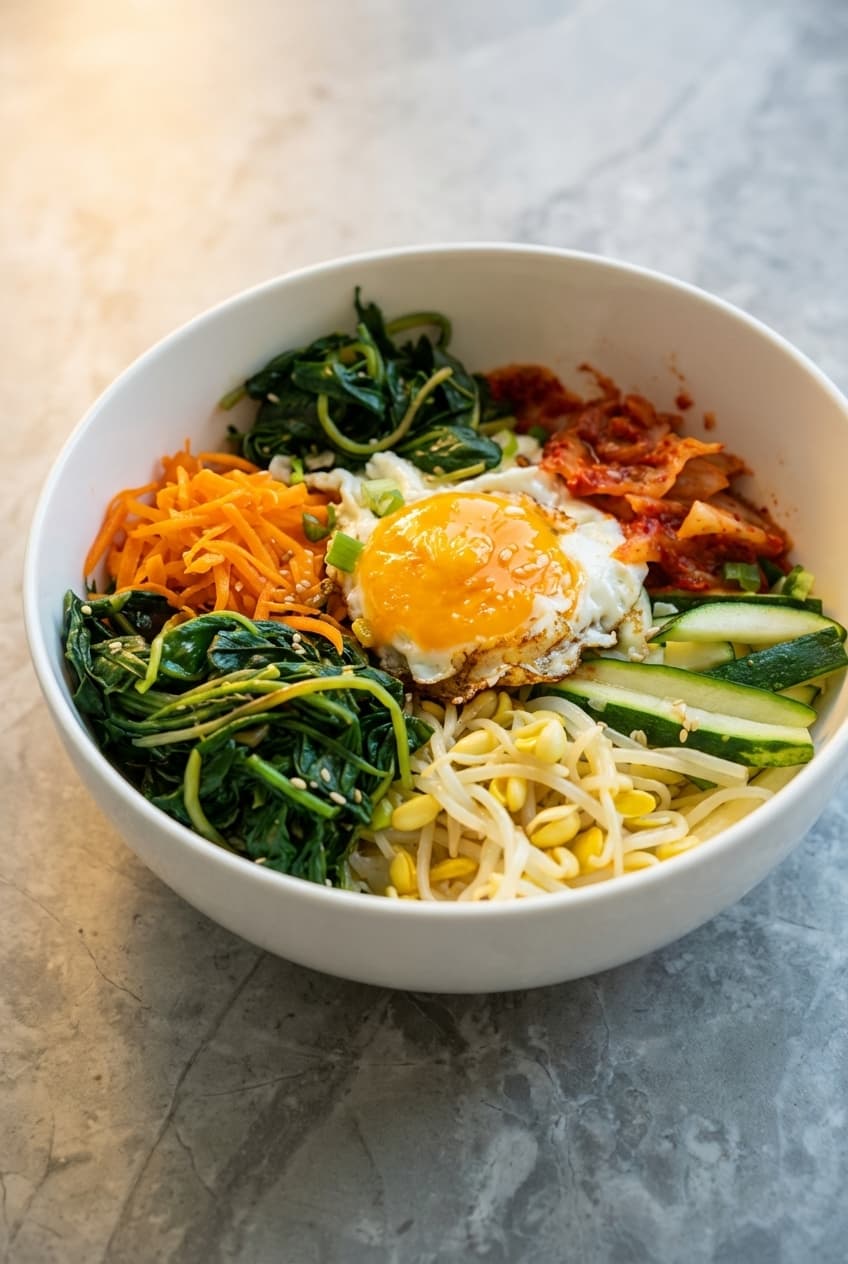
Menu items with professional photos receive 30% more orders on delivery platforms. That’s not a marketing claim, it’s data published directly by Uber Eats and DoorDash. Yet the majority of restaurants on these platforms either have no photos or use dark, blurry images that actively drive customers away.
This guide covers everything you need to know about optimizing your menu photos specifically for delivery apps, including the exact specs, common mistakes, and how to make your food stand out in a sea of tiny thumbnails.
Why Delivery Photos Matter More Than You Think
When a customer walks into your restaurant, they experience the ambiance, the smells, the sounds, and the energy of the space. None of that exists on a delivery app. The only thing they see is a small thumbnail photo next to a dish name and a price.
Here are the numbers:
- 30% more orders: Menu items with photos vs. without on Uber Eats
- 35% higher conversion: DoorDash reports that complete photo coverage increases order conversion by 35%
- 25% larger order size: Customers add more items when they can see what they’re ordering
- Algorithm boost: Both Uber Eats and DoorDash algorithmically rank restaurants with complete photo coverage higher in search results
- Reduced complaints: When customers see exactly what they’re getting, there are fewer “not what I expected” refund requests
If you’re paying 15–30% commission on every delivery order, not having professional photos is leaving thousands of dollars on the table every month.
Platform-Specific Photo Specs
Each delivery platform has slightly different requirements. For in-depth platform guides, see our dedicated pages for Uber Eats photos, DoorDash menu photos, and GrubHub photos. Here’s a side-by-side comparison:
| Spec | Uber Eats | DoorDash | GrubHub |
|---|---|---|---|
| Minimum size | 320 × 320 px | 1200 × 800 px | 1600 × 1200 px |
| Recommended size | 1080 × 1080 px | 2880 × 1920 px | 1600 × 1200 px |
| Aspect ratio | 1:1 (square) | 3:2 (landscape) | 4:3 (landscape) |
| Format | JPG or PNG | JPG or PNG | JPG or PNG |
| Max file size | 10 MB | 10 MB | 10 MB |
| Background | Clean, uncluttered | Simple, well-lit | Plain or simple |
| Thumbnail size | ~90 × 90 px | ~120 × 80 px | ~100 × 75 px |
Key takeaway: Every platform has a different aspect ratio. If you use a single square photo for all three, it will get cropped differently on DoorDash and GrubHub. Ideally, you want separate crops for each platform.
The Thumbnail Problem: Why Most Food Photos Fail on Delivery Apps
Here’s what most restaurant owners don’t realize: your beautiful 1080px photo gets displayed at roughly 90–120 pixels on a phone screen. That’s tiny. What looks great at full size can be completely unrecognizable at thumbnail size.
What works at thumbnail size:
- High contrast: The food needs to stand out clearly against the background
- Simple compositions: One dish, filling most of the frame. Not a table spread with five items.
- Bold colors: Vibrant reds, greens, and golds pop at small sizes. Brown and beige blur together.
- Tight crops: Fill 80%+ of the frame with the food. No wasted space around the edges.
What fails at thumbnail size:
- Wide shots: A full table spread becomes an indistinguishable blob at 90px
- Dark/moody lighting: Dramatic shadows disappear at small sizes, the food just looks dark
- Busy backgrounds: Patterns, multiple props, and cluttered surfaces create visual noise
- Small portions: If the food doesn’t fill the frame, it looks tiny and unappetizing
How to Photograph for Delivery Apps: Step by Step
Step 1: Set Up Your Background
Use a clean, simple background that contrasts with your food. White or light gray works for most dishes. Dark surfaces work for lighter-colored foods (white fish, cream pasta). Avoid patterned tablecloths, busy wood grains, or colored plates that compete with the food.
Step 2: Light It Right
Natural window light is best. Place the dish near a large window with the light coming from the side or slightly behind. Avoid overhead restaurant lights, they create unflattering shadows and make food look yellow/green. For more detail, read our food photography lighting guide. If natural light isn’t available, use a daylight LED panel ($30–$50 on Amazon).
Step 3: Style the Dish
Plate the dish as you would for a customer, then improve it slightly. Wipe the plate rim clean. Add a fresh garnish. Drizzle sauce neatly. The dish should look its absolute best, this photo represents every order.
Step 4: Shoot Overhead (Default Angle)
The overhead angle (directly above, looking down) is the most consistent and works best for delivery app thumbnails. It shows the full composition of the dish clearly. Use a phone tripod or hold your phone directly above with both hands.
Step 5: Fill the Frame
Get close. The dish should occupy 70–80% of the image. Remember, this will be viewed at 90–120px. Every pixel counts. Crop tight and leave minimal background.
Step 6: Shoot Multiple Angles
For dishes with height (burgers, stacked items, tall desserts), also shoot a 45-degree angle. Some platforms let you upload multiple photos per menu item.
7 Common Delivery Photo Mistakes
- No photos at all: Menu items without photos get 30% fewer orders. This is the most expensive mistake you can make.
- Using old, low-resolution photos: Blurry or pixelated images signal low quality. Customers assume the food matches the photo quality.
- Inconsistent styling: Some photos bright, some dark, different angles, different backgrounds. Inconsistency makes your menu look disorganized.
- Including text on photos: Don’t add dish names, prices, or logos to your photos. The platform already shows this information. Text on photos looks cluttered and unprofessional.
- Using stock photos: Customers can tell. Uber Eats and DoorDash can also detect stock photos and may flag your listing. Always use photos of your actual food.
- Photographing in containers: Don’t photograph the food in its delivery container. Plate it nicely for the photo, even though it ships in a box. The photo sells the dream.
- Forgetting to update: If your recipe or plating changes, update the photo. Nothing erodes trust faster than “this looks nothing like the picture.”
Maintaining Consistency Across Platforms
If you’re on multiple delivery platforms (and you should be), consistency is critical. Your pad thai should look the same on Uber Eats, DoorDash, and GrubHub. Here’s how:
- Shoot once, crop three ways: Take your master photo at the highest resolution, then crop it to 1:1 (Uber Eats), 3:2 (DoorDash), and 4:3 (GrubHub)
- Same lighting setup: Use the same lighting position for every dish so the color temperature and shadow direction are consistent
- Same background: Use the same surface/plate combination for your entire menu
- Same editing style: Apply the same brightness, contrast, and saturation adjustments to all photos
How Many Menu Items Need Photos?
The short answer: all of them.
DoorDash data shows that restaurants with 100% photo coverage get the highest ranking boost. But if you can’t do everything at once, prioritize in this order:
- Top 10 sellers: These drive the most revenue. Get them photographed first.
- Category headers: The first item in each menu section (appetizers, entrees, desserts) sets expectations.
- High-margin items: The dishes you want people to order most.
- Everything else: Fill in remaining items over time.
CraveMode: Automatic Multi-Platform Formatting
Manually cropping and formatting photos for three different platforms is tedious and time-consuming. CraveMode automates this entirely.
Upload your raw food photos and we deliver back:
- Enhanced photos with professional lighting, color correction, and sharpening
- Auto-formatted for every platform: 1:1 for Uber Eats, 3:2 for DoorDash, 4:3 for GrubHub, 9:16 for social media
- Thumbnail-optimized: Our engine specifically optimizes for how the photo will look at 90–120px, ensuring your food pops even at the smallest display size
- Consistent style: Every photo in your menu gets the same lighting, color, and composition treatment so your listing looks cohesive
Stop losing orders to missing or poor-quality photos. CraveMode can have your entire menu photographed and formatted for all delivery platforms in minutes.